Jun 10, 2024
6 min
How to integrate Gemini and Sheets with BigQuery
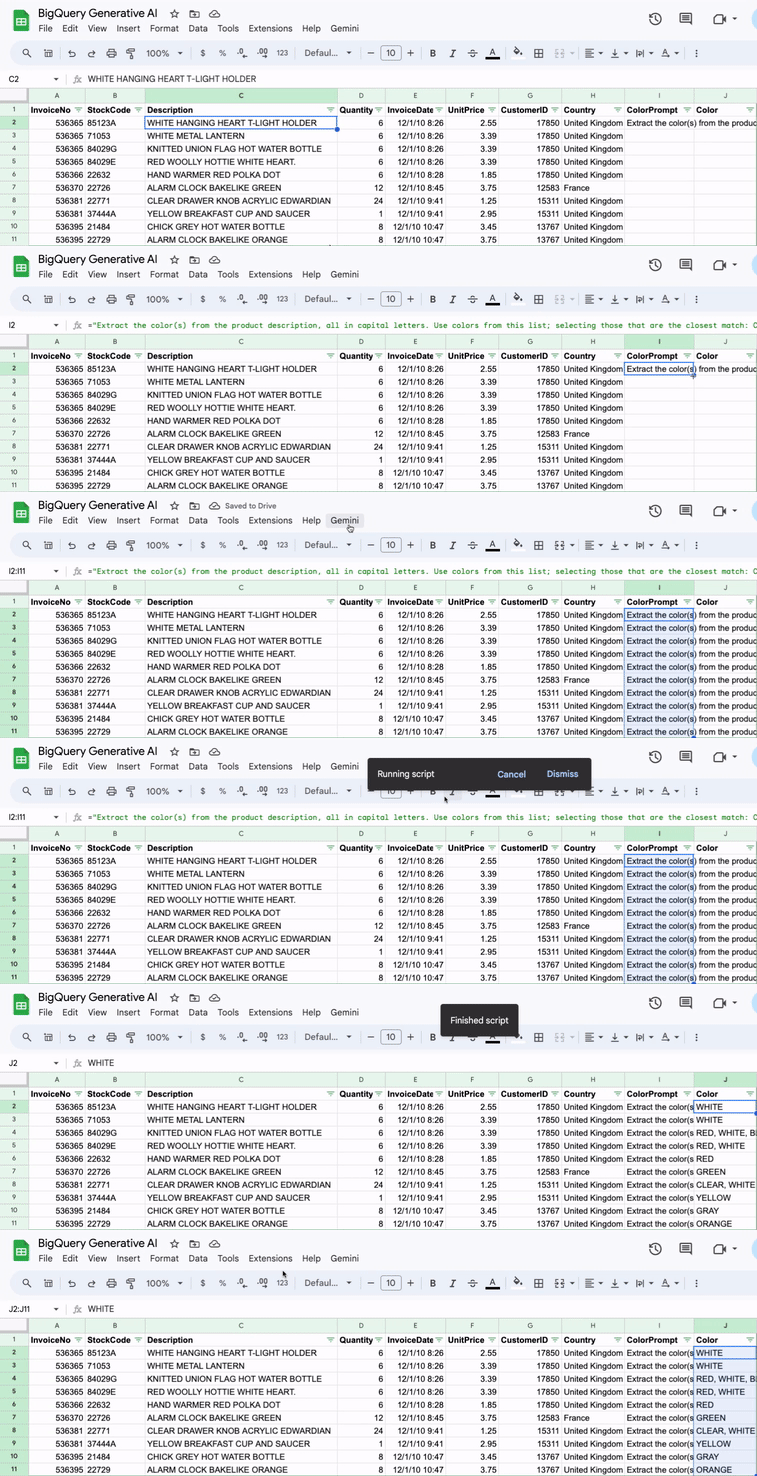
I often find myself in Google Sheets. Some would say too often. Since I use Gemini for all kinds of things too, integrating Gemini into my Sheets workflow just

Generative AI and large language models (LLMs) are revolutionizing organizations across diverse sectors to enhance customer experience, which traditionally would take years to make progress. Every organization has data stored in data stores, either on premises or in cloud providers.
You can embrace generative AI and enhance customer experience by converting your existing data into an index on which generative AI can search. When you ask a question to an open source LLM, you get publicly available information as a response. Although this is helpful, generative AI can help you understand your data along with additional context from LLMs. This is achieved through Retrieval Augmented Generation (RAG).
RAG retrieves data from a preexisting knowledge base (your data), combines it with the LLM’s knowledge, and generates responses with more human-like language. However, in order for generative AI to understand your data, some amount of data preparation is required, which involves a big learning curve.
Amazon Aurora is a MySQL and PostgreSQL-compatible relational database built for the cloud. Aurora combines the performance and availability of traditional enterprise databases with the simplicity and cost-effectiveness of open source databases.
In this post, we walk you through how to convert your existing Aurora data into an index without needing data preparation for Amazon Kendra to perform data search and implement RAG that combines your data along with LLM knowledge to produce accurate responses.
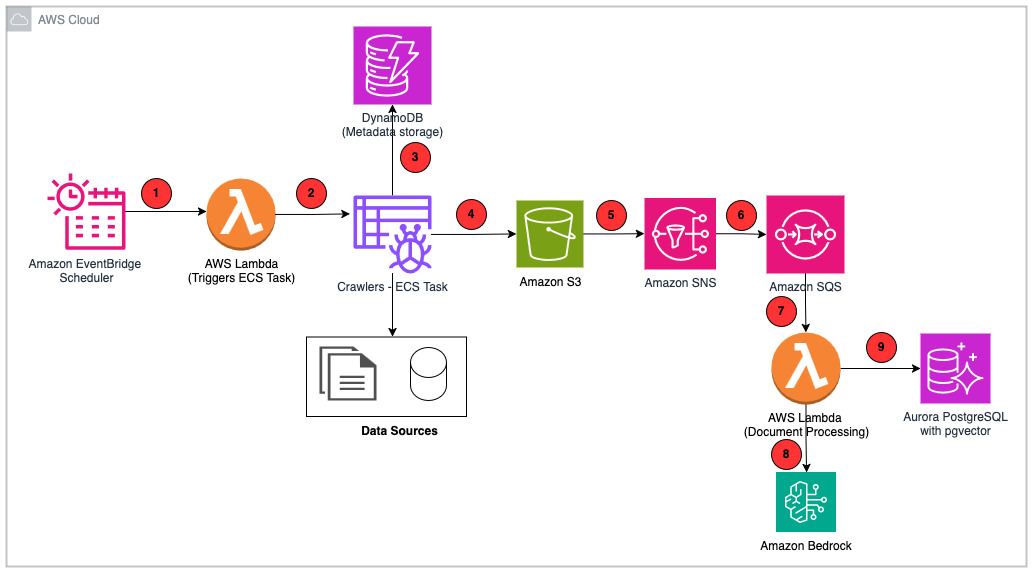
In this solution, use your existing data as a data source (Aurora), create an intelligent search service by connecting and syncing your data source to Amazon Kendra search, and perform generative AI data search, which uses RAG to produce accurate responses by combining your data along with the LLM’s knowledge. For this post, we use Anthropic’s Claude on Amazon Bedrock as our LLM.
The following are the high-level steps for the solution:
The following diagram illustrates the solution architecture.
To follow this post, the following prerequisites are required:
Run the following AWS CLI commands to create an Aurora PostgreSQL Serverless v2 cluster:
aws rds create-db-cluster
--engine aurora-postgresql
--engine-version 15.4
--db-cluster-identifier genai-kendra-ragdb
--master-username postgres
--master-user-password XXXXX
--db-subnet-group-name dbsubnet
--vpc-security-group-ids "sg-XXXXX"
--serverless-v2-scaling-configuration "MinCapacity=2,MaxCapacity=64"
--enable-http-endpoint
--region us-east-2

aws rds create-db-instance
--db-cluster-identifier genai-kendra-ragdb
--db-instance-identifier genai-kendra-ragdb-instance
--db-instance-class db.serverless
--engine aurora-postgresql
The following screenshot shows the created instance.

Connect to the Aurora instance using the pgAdmin tool. Refer to Connecting to a DB instance running the PostgreSQL database engine for more information. To ingest your data, complete the following steps:
Run the following PostgreSQL statements in pgAdmin to create the database, schema, and table:
CREATE DATABASE genai;
CREATE SCHEMA 'employees';

CREATE DATABASE genai;
SET SCHEMA 'employees';

CREATE TABLE employees.amazon_review(
pk int GENERATED ALWAYS AS IDENTITY NOT NULL,
id varchar(50) NOT NULL,
name varchar(300) NULL,
asins Text NULL,
brand Text NULL,
categories Text NULL,
keys Text NULL,
manufacturer Text NULL,
reviews_date Text NULL,
reviews_dateAdded Text NULL,
reviews_dateSeen Text NULL,
reviews_didPurchase Text NULL,
reviews_doRecommend varchar(100) NULL,
reviews_id varchar(150) NULL,
reviews_numHelpful varchar(150) NULL,
reviews_rating varchar(150) NULL,
reviews_sourceURLs Text NULL,
reviews_text Text NULL,
reviews_title Text NULL,
reviews_userCity varchar(100) NULL,
reviews_userProvince varchar(100) NULL,
reviews_username Text NULL,
PRIMARY KEY
(
pk
)
) ;
In your pgAdmin Aurora PostgreSQL connection, navigate to Databases, genai, Schemas, employees, Tables.
Choose (right-click) Tables and choose PSQL Tool to open a PSQL client connection.

Place the csv file under your pgAdmin location and run the following command:
copy employees.amazon_review (id, name, asins, brand, categories, keys, manufacturer, reviews_date, reviews_dateadded, reviews_dateseen, reviews_didpurchase, reviews_dorecommend, reviews_id, reviews_numhelpful, reviews_rating, reviews_sour
ceurls, reviews_text, reviews_title, reviews_usercity, reviews_userprovince, reviews_username) FROM 'C:Program FilespgAdmin 4runtimeamazon_review.csv' DELIMITER ',' CSV HEADER ENCODING 'utf8';

Run the following PSQL query to verify the number of records copied:
Select count (*) from employees.amazon_review;

The Amazon Kendra index holds the contents of your documents and is structured in a way to make the documents searchable. It has three index types:
To create an Amazon Kendra index, complete the following steps:
genai-kendra-index).genai-kendra). Your role name will be prefixed with AmazonKendra-<region>- (for example, AmazonKendra-us-east-2-genai-kendra).


It might take some time for the index to create. Check the list of indexes to watch the progress of creating your index. When the status of the index is ACTIVE, your index is ready to use.

Complete the following steps to set up your data source connector:

data_source_genai_kendra_postgresql).
cvgupdj47zsh.us-east-2.rds.amazonaws.com).5432).genai).
AmazonKendra-Aurora-PostgreSQL-genai-kendra-secret).

select * from employees.amazon_review.pk).reviews_title).reviews_text).After the sync completes successfully, your Amazon Kendra index will contain the data from the specified Aurora PostgreSQL table. You can then use this index for intelligent search and RAG applications.


Your data source will appear on the Data sources page after the data source has been created successfully.

The Amazon Kendra index sync can take minutes to hours depending on the volume of your data. When the sync completes without error, you are ready to develop your RAG solution in your preferred IDE. Complete the following steps:
Configure your AWS credentials to allow Boto3 to interact with AWS services. You can do this by setting the AWS_ACCESS_KEY_ID and AWS_SECRET_ACCESS_KEY environment variables or by using the ~/.aws/credentials file:
import boto3
  pip install langchain

# Create a Boto3 session

session = boto3.Session(
   aws_access_key_id='YOUR_AWS_ACCESS_KEY_ID',
   aws_secret_access_key='YOUR_AWS_SECRET_ACCESS_KEY',
   region_name='YOUR_AWS_REGION'
)
Import LangChain and the necessary components:
from langchain_community.llms import Bedrock
from langchain_community.retrievers import AmazonKendraRetriever
from langchain.chains import RetrievalQA
Create an instance of the LLM (Anthropic’s Claude):
llm = Bedrock(
region_name = "bedrock_region_name",
model_kwargs = {
"max_tokens_to_sample":300,
"temperature":1,
"top_k":250,
"top_p":0.999,
"anthropic_version":"bedrock-2023-05-31"
},
model_id = "anthropic.claude-v2"
)
Create your prompt template, which provides instructions for the LLM:
from langchain_core.prompts import PromptTemplate

prompt_template = """
You are a <persona>Product Review Specialist</persona>, and you provide detail product review insights.
You have access to the product reviews in the <context> XML tags below and nothing else.

<context>
{context}
</context>

<question>
{question}
</question>
"""

prompt = PromptTemplate(template=prompt_template, input_variables=["context", "question"])
Initialize the KendraRetriever with your Amazon Kendra index ID by replacing the Kendra_index_id that you created earlier and the Amazon Kendra client:
session = boto3.Session(region_name='Kendra_region_name')
kendra_client = session.client('kendra')
# Create an instance of AmazonKendraRetriever
kendra_retriever = AmazonKendraRetriever(
kendra_client=kendra_client,
index_id="Kendra_Index_ID"
)
Combine Anthropic’s Claude and the Amazon Kendra retriever into a RetrievalQA chain:
qa = RetrievalQA.from_chain_type(
llm=llm,
chain_type="stuff",
retriever=kendra_retriever,
return_source_documents=True,
chain_type_kwargs={"prompt": prompt},
)
Invoke the chain with your own query:
query = "What are some products that has bad quality reviews, summarize the reviews"
result_ = qa.invoke(
query
)
result_

To avoid incurring future charges, delete the resources you created as part of this post:
In this post, we discussed how to convert your existing Aurora data into an Amazon Kendra index and implement a RAG-based solution for the data search. This solution drastically reduces the data preparation need for Amazon Kendra search. It also increases the speed of generative AI application development by reducing the learning curve behind data preparation.
Try out the solution, and if you have any comments or questions, leave them in the comments section.
 Aravind Hariharaputran is a Data Consultant with the Professional Services team at Amazon Web Services. He is passionate about Data and AIML in general with extensive experience managing Database technologies .He helps customers transform legacy database and applications to Modern data platforms and generative AI applications. He enjoys spending time with family and playing cricket.
 Ivan Cui is a Data Science Lead with AWS Professional Services, where he helps customers build and deploy solutions using ML and generative AI on AWS. He has worked with customers across diverse industries, including software, finance, pharmaceutical, healthcare, IoT, and entertainment and media. In his free time, he enjoys reading, spending time with his family, and traveling.
Source: Original Article
Last updated: March 23, 2026